

Introduction: If you own an Amazon Fire TV, Firestick, Fire TV Cube, or Fire TV Smart TV, you may want to install apps from sources other than the official Amazon Appstore. Enabling the “Apps from Unknown Sources” feature allows you to sideload app APKs onto your device, expanding its capabilities. In this guide, we’ll walk you through the process of enabling Apps from Unknown Sources on different versions of Amazon Fire TV devices.
2020 Interface (Latest):
1.From the Fire TV home screen, navigate to the gear icon on the far right, representing “Settings.”
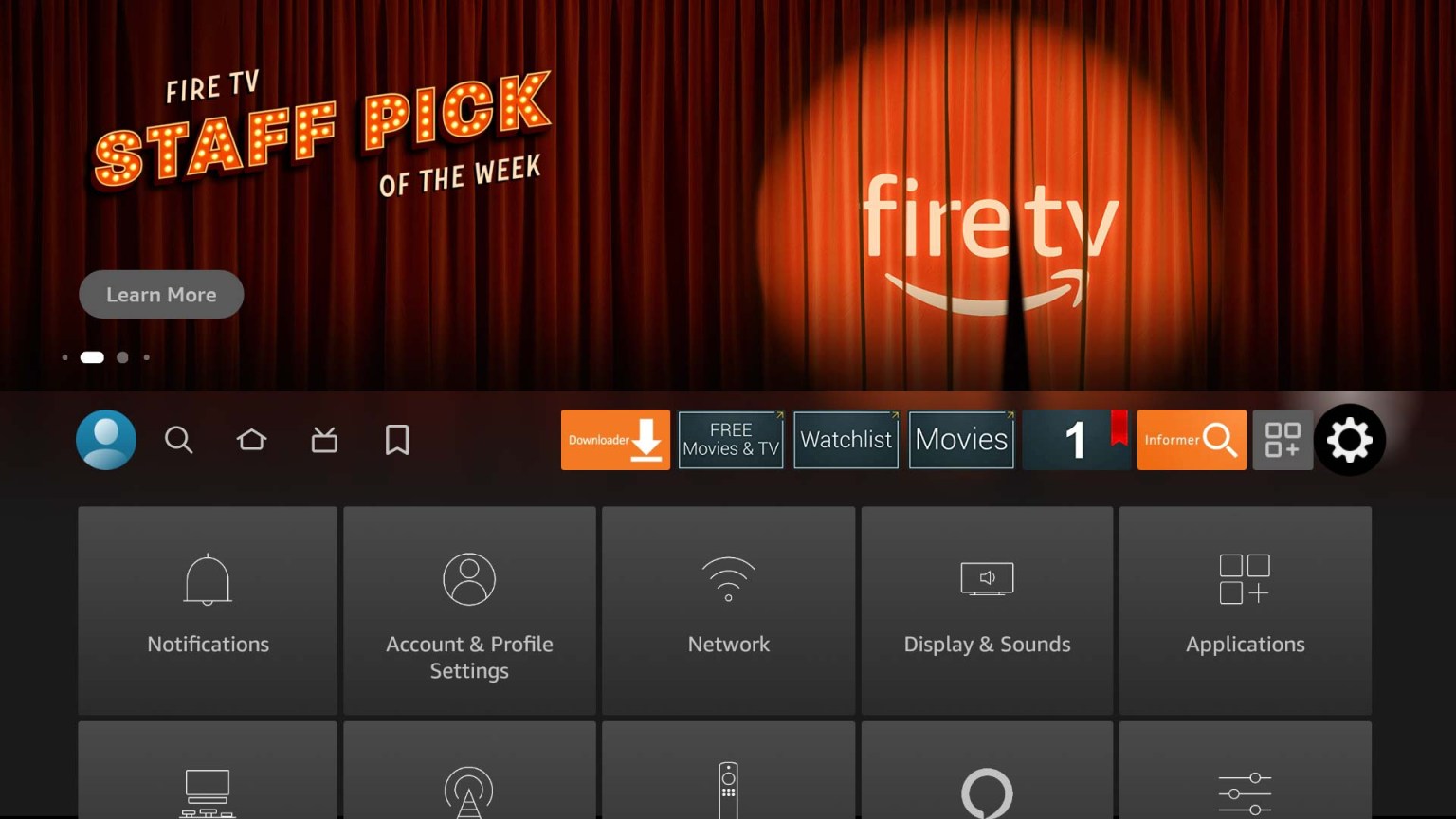
2. Scroll down and select “My Fire TV” (for Fire TV Stick/Cube) or “Device & Software” (for Fire TV Smart TV).

Popular posts
- Revolutionizing the Way You Watch TV | StaticIPTV
- How to Install StaticIPTV on a Firestick
- StaticIPTV: The Best UK IPTV Option
- Enabling Apps from Unknown Sources on Amazon Fire TV: A Step-by-Step Guide
- How to Set Up IPTV Using StaticIPTV
- How to Use StaticIPTV with an IBO Player
- How to Use StaticIPTV with a DuplexPlay
3.Choose “Developer options” from the menu. If you can’t find this option, follow our guide to reveal it before proceeding.
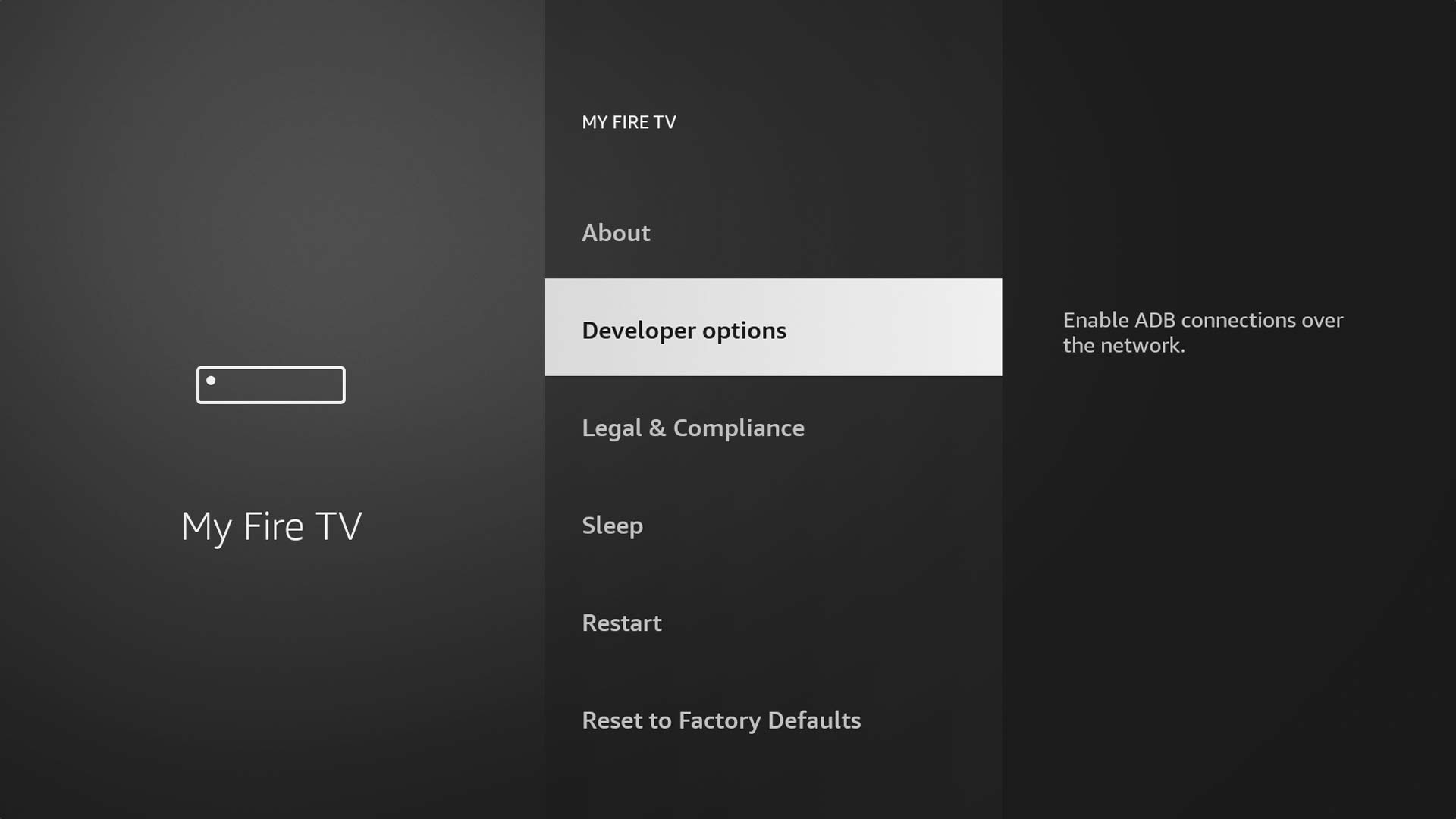
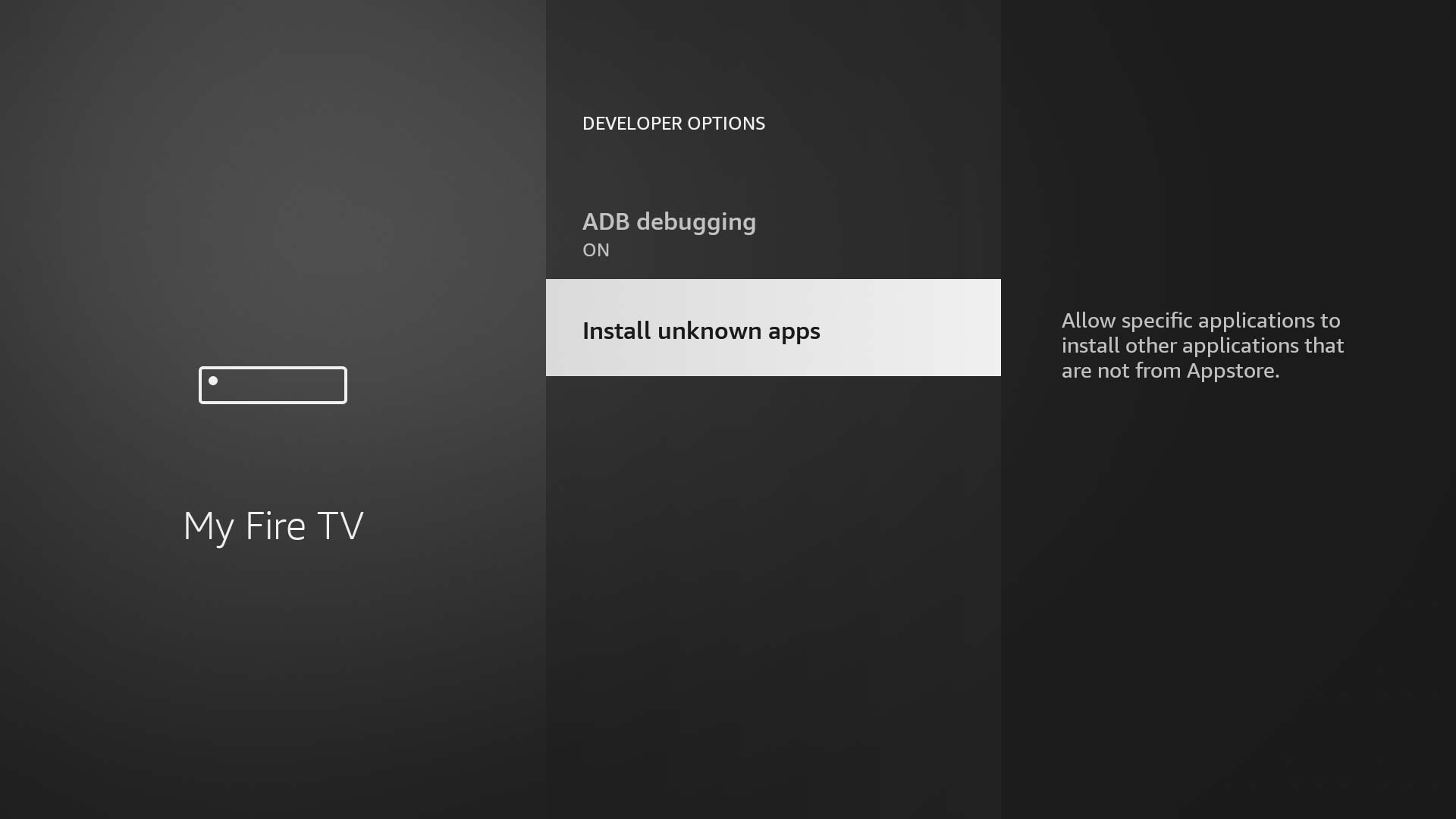
4.If the bottom option is “Apps from Unknown Sources,” select it to enable the feature. Otherwise, if it’s labeled “Install unknown apps,” proceed to the next step.

5.Select the “Install unknown apps” menu option.
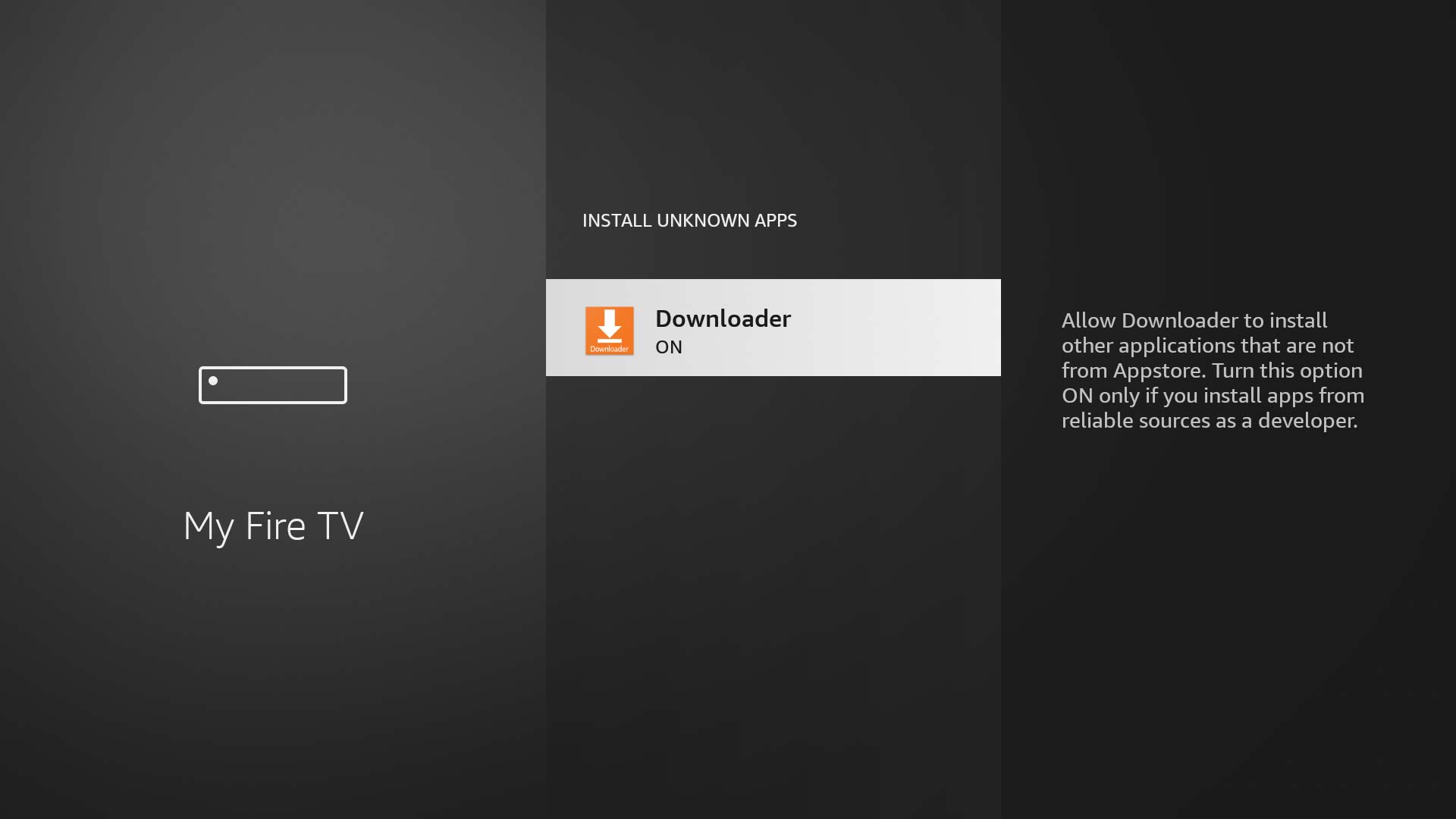
6.Choose the app name, such as Downloader, to grant it permission to install app APK files.
2015 Interface:
1.From the Fire TV home screen, scroll to “Settings.”
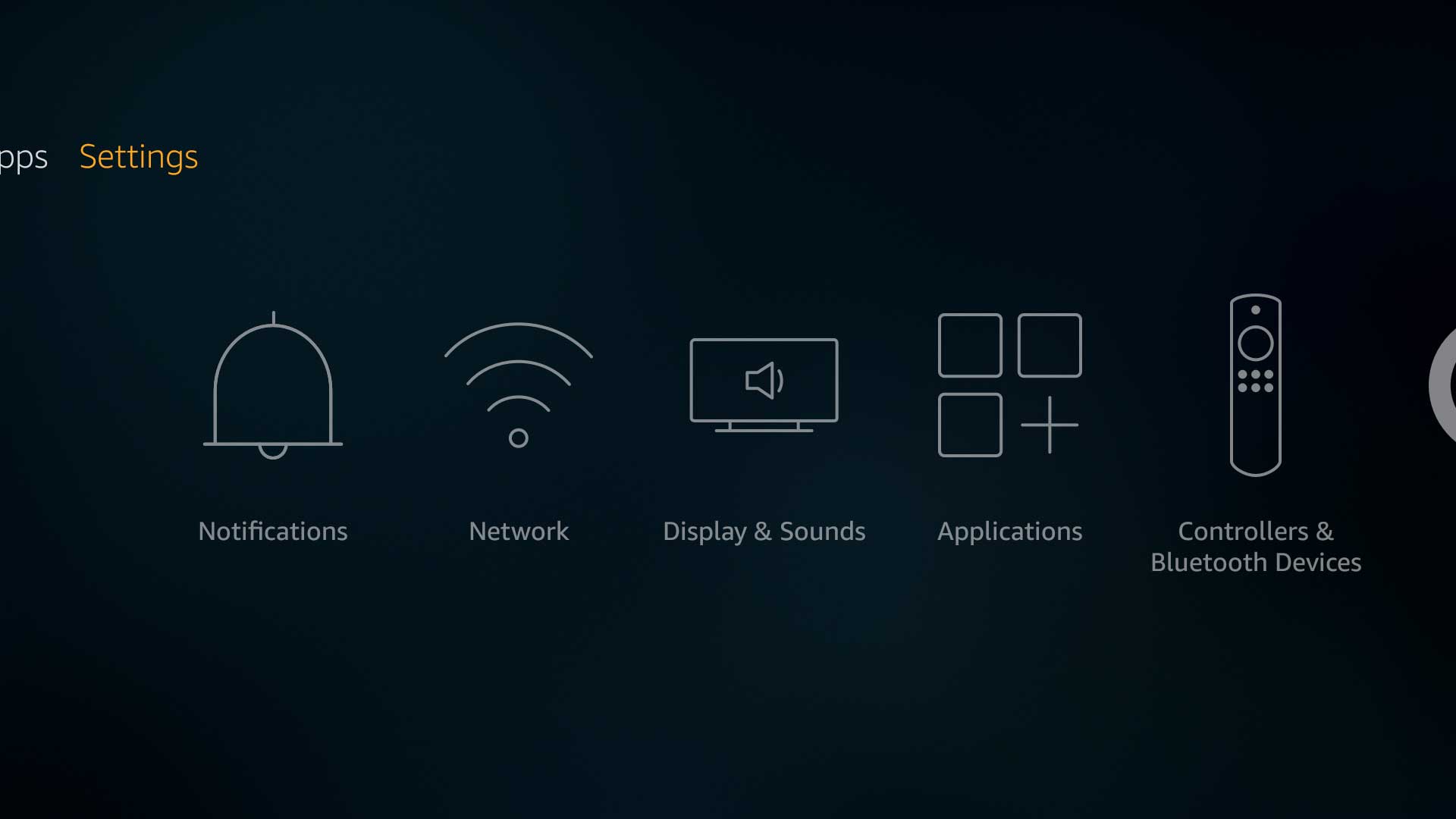
2.Scroll to the right and select “My Fire TV” (or “Device” on older models).

3.Scroll down and choose “Developer options.” If the option is hidden, follow our guide to reveal it first.
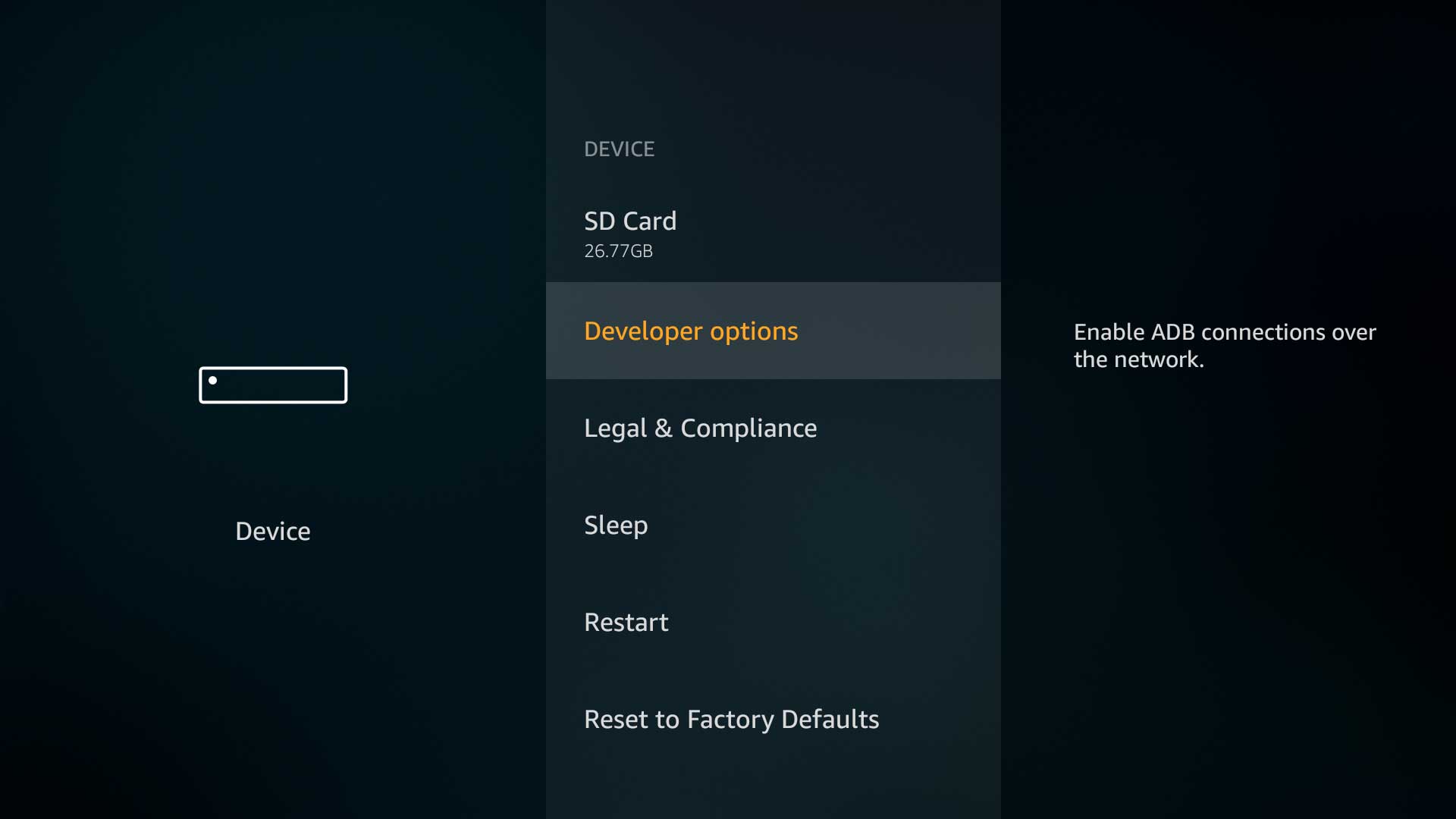
4.Select “Apps from Unknown Sources” and turn it ON.

5.Confirm your selection by choosing “Turn On” in the popup message.

2014 Interface:
1.From the Fire TV home screen, scroll down to “Settings.”

2.Scroll to the right and select “System.”

3. Scroll down and choose “Developer Options.”

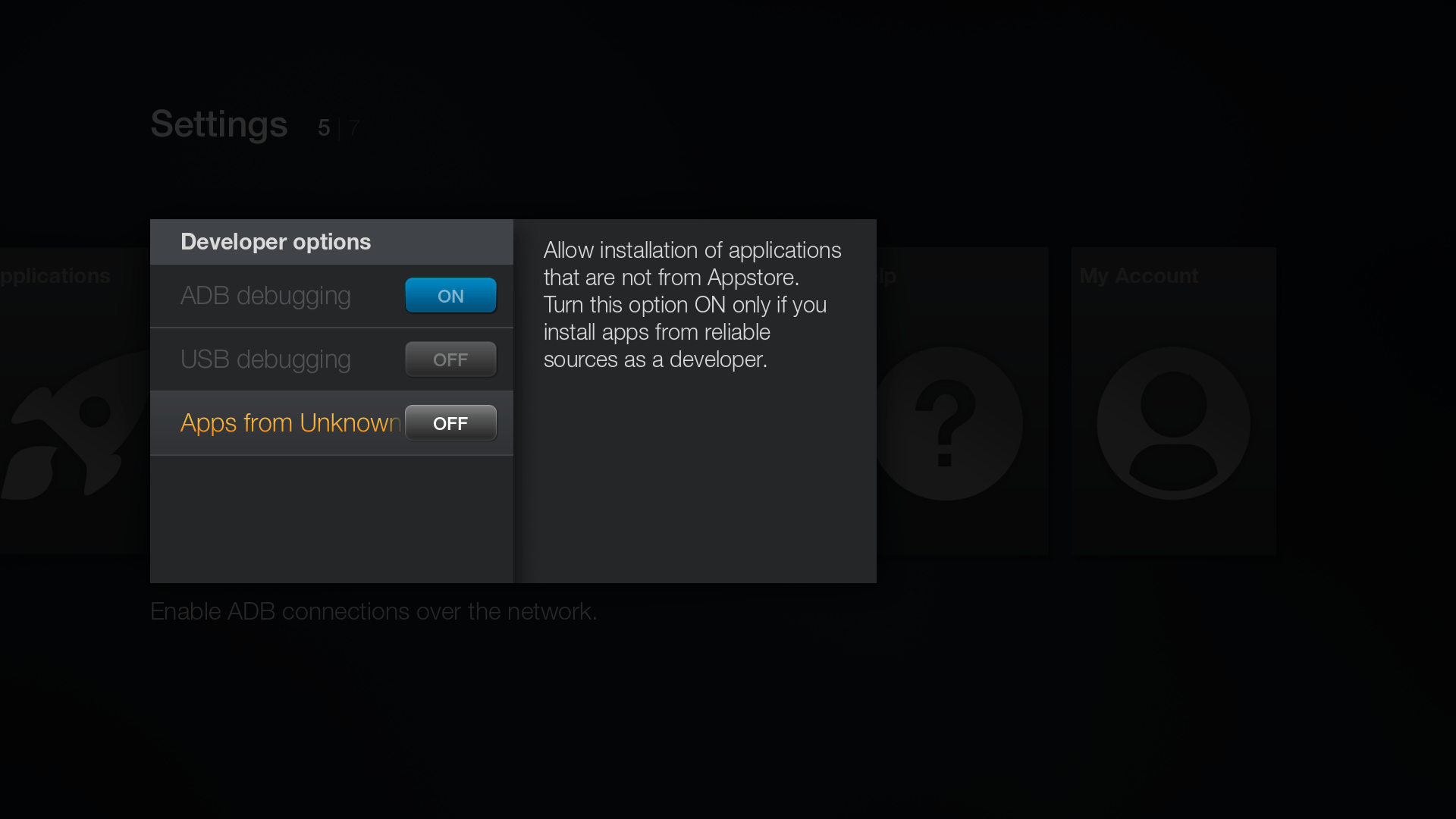
4. Select “Apps from Unknown Sources” and turn it ON.
Recent Posts
- Where can I find IPTV services that integrate well with popular streaming devices? | StaticIPTV.info
- What IPTV subscriptions include HD or 4K streaming options? | StaticIPTV.info
- Which IPTV providers have the best user interface and app experience? | StaticIPTV.info
- Are there IPTV services that offer flexible contract lengths or no contracts? | StaticIPTV.info
- What IPTV subscriptions include premium entertainment channels? | StaticIPTV.info
- Which IPTV services provide the best customer support in the UK? | StaticIPTV.info
- What are the top IPTV plans with simultaneous streaming on multiple devices? | StaticIPTV.info
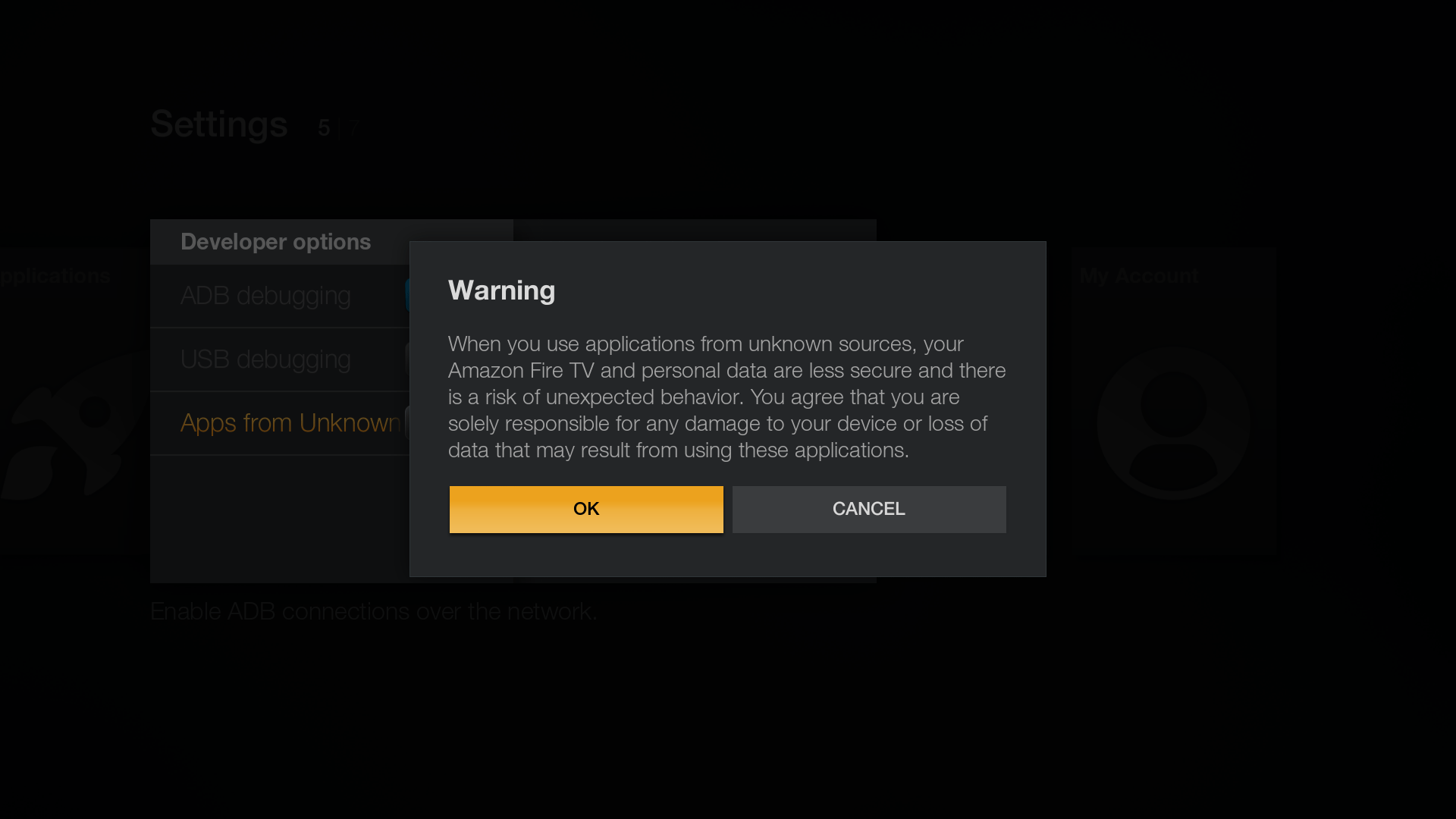
5. Confirm by selecting “OK” in the popup message.
Conclusion
Enabling Apps from Unknown Sources on your Amazon Fire TV device gives you the freedom to install apps from external sources, expanding your entertainment possibilities. Whether you’re using the latest 2020 interface or older versions, our step-by-step guide will help you navigate the settings and unlock the full potential of your Amazon Fire TV.
To access more informative guides and valuable tips, visit our blog at https://staticiptv.info/blog . Elevate your streaming experience to new heights with StaticIPTV. Discover the world of unlimited entertainment and enjoy an extensive selection of channels, movies, and TV shows. With our user-friendly interface and reliable service, you can immerse yourself in the best streaming experience. Start exploring the possibilities and make the most of your entertainment time with StaticIPTV. Visit our website now and unlock a world of entertainment at your fingertips.